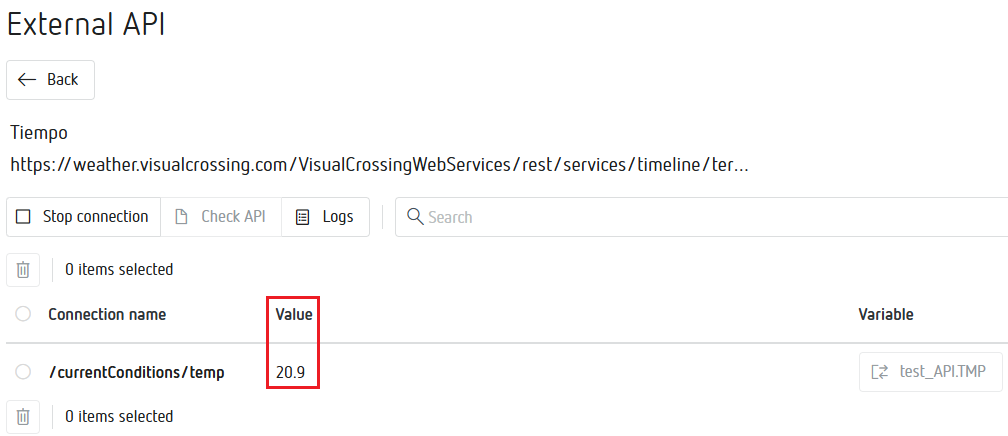
External API Configuration
This PowerStudio Scada Wave module allows the software to connect with external services through APIs that exchange data in JSON format, making integration with third‑party platforms, systems, or devices easier.
Important
The External API module only works with APIs that use JSON format.
Below, the following is explained:
- Using the Visualcrossing JSON API as an example.
- Creating a forcible calculated variable in PowerStudio Scada Editor.
- Configuring the External API module.
Example with the Visualcrossing JSON API
We use the free Visualcrossing website as an example to test our External API tool.
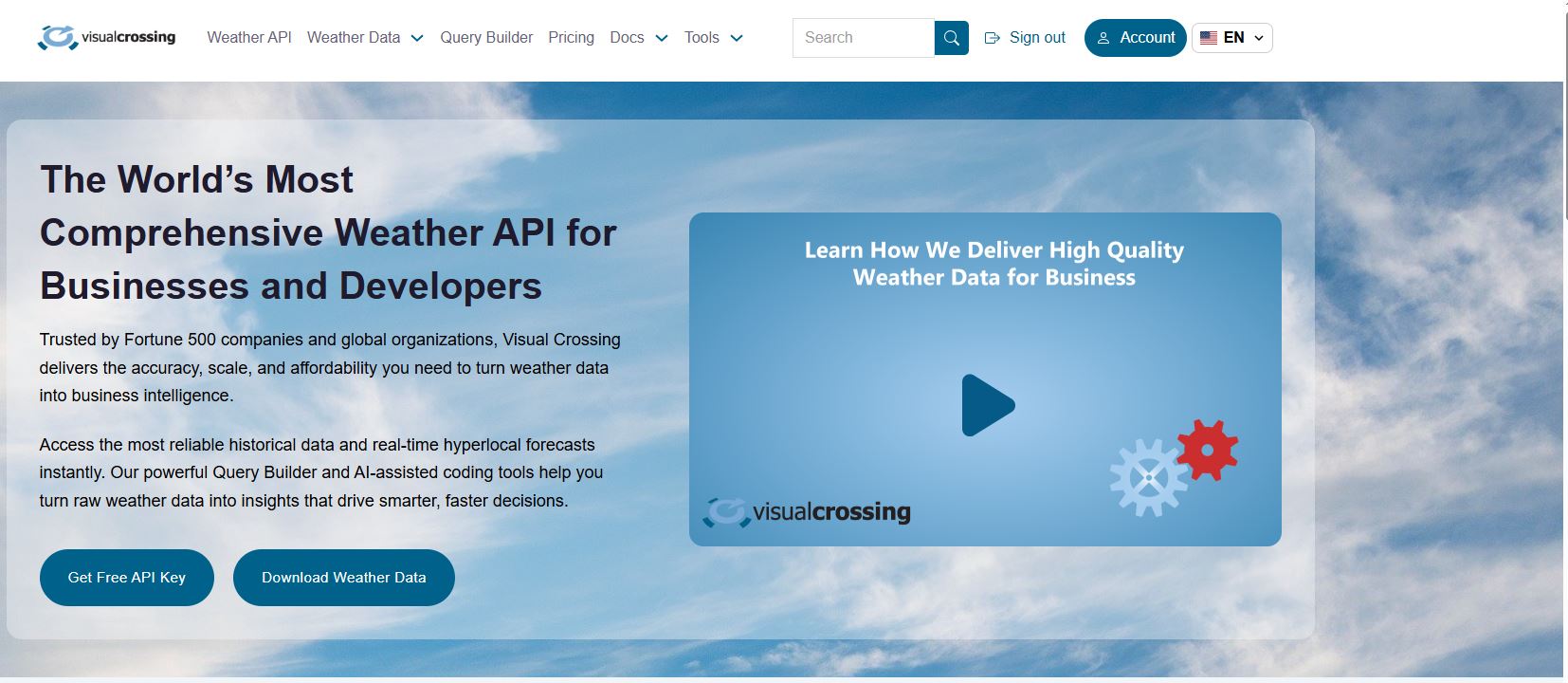
If we are not registered on this website, we will need to create an account in order to use the API.
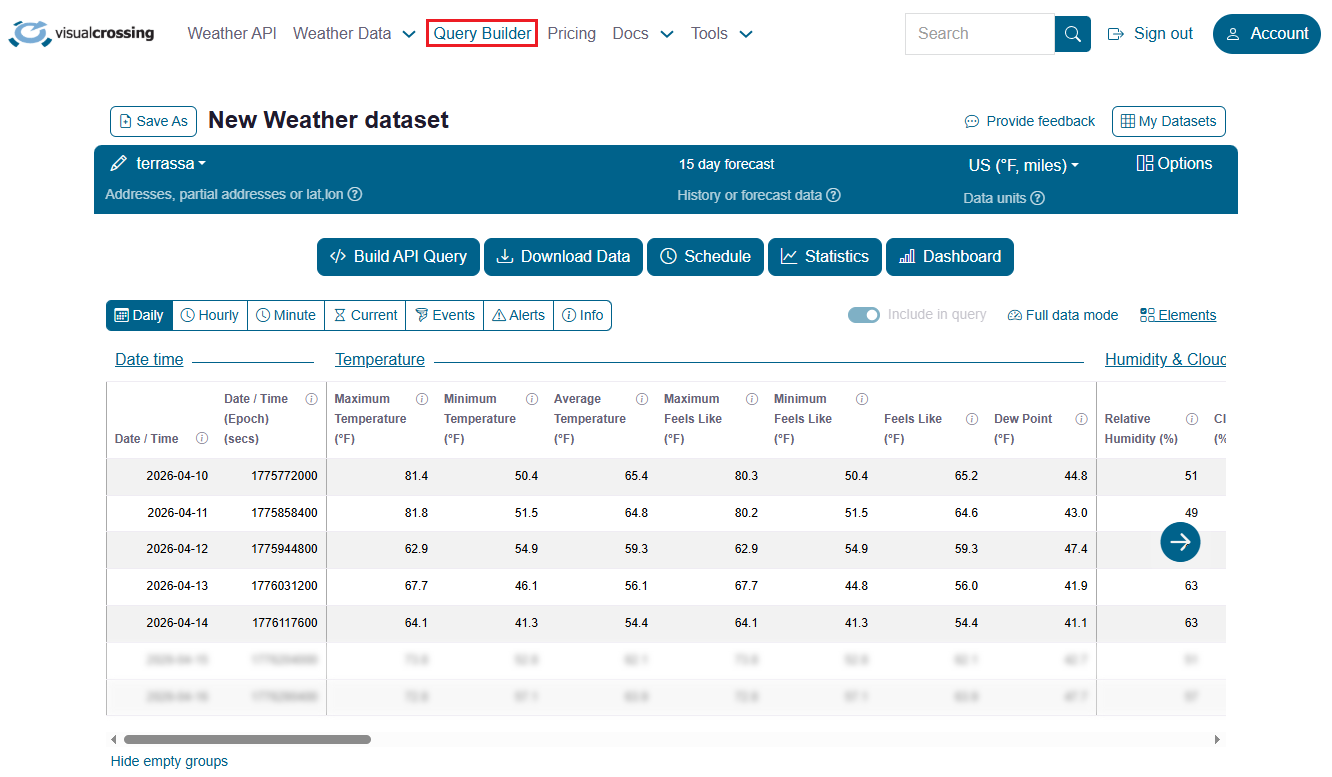
Once registered on the website, go to the Query Builder section, where we will select the area from which we want to obtain weather data.
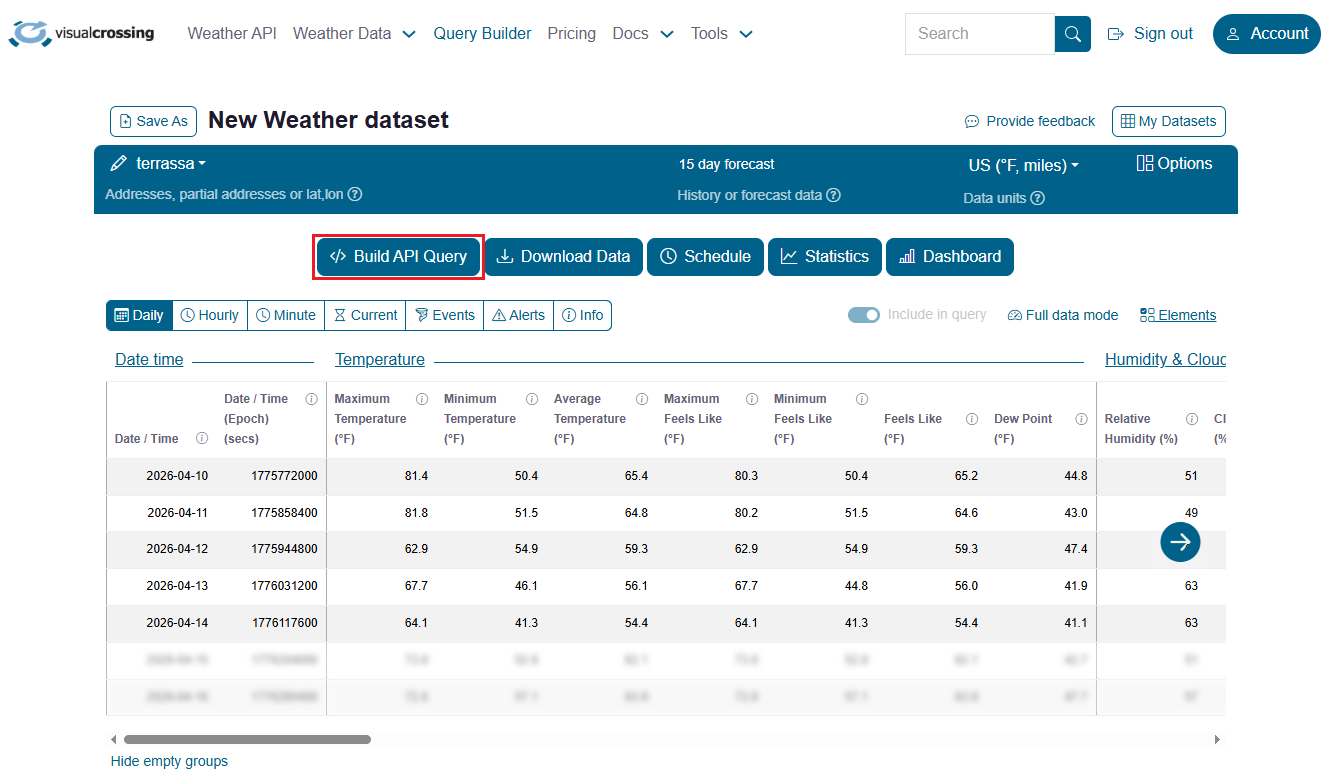
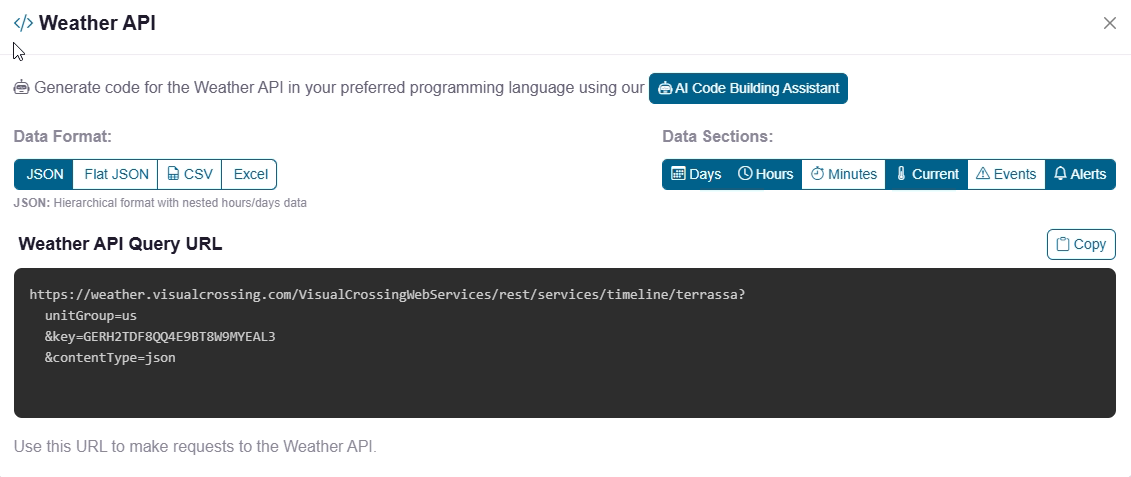
Now click on Build API Query. This will generate the code in JSON format that we will use in our API.
All the text returned by the website will be used in the External API module.
How to create a forcible calculated variable in PowerStudio Editor
A forcible calculated variable is a variable that can be overwritten with any value.
This will allow us to link our External API module to this variable.
In this way, the values we select from the Visualcrossing JSON API will be stored in the forcible calculated variable that we configure.
To create a forcible calculated variable, we must:
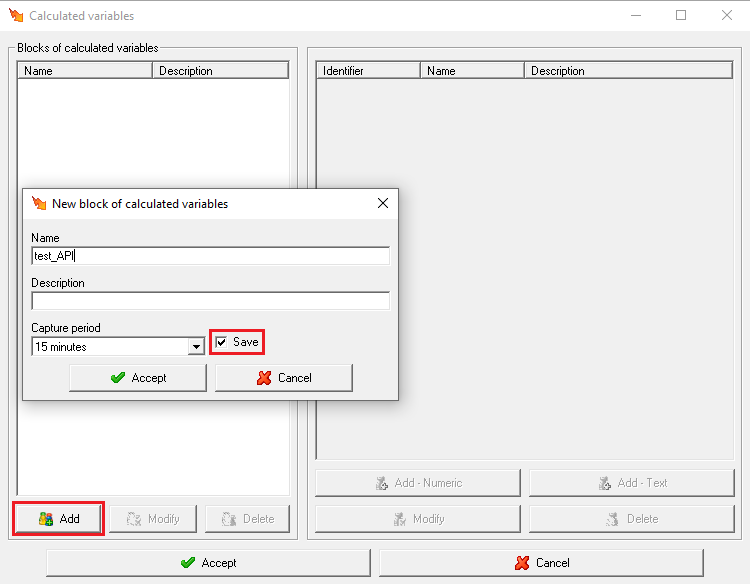
- Access the PowerStudio Scada Editor program. Go to Setup -> Calculated Variables and create the forcible calculated variables group:
Important
It is very important to enable the Save checkbox. This time defines the period at which values are stored.
We will use the same save interval when configuring the variables in the External API module.
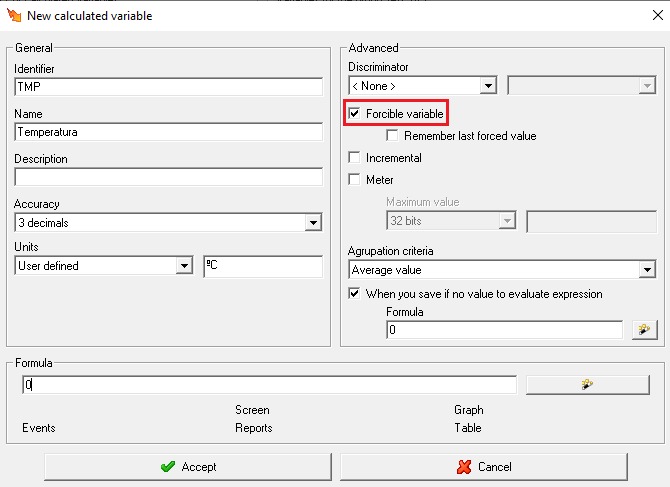
- Create the calculated variable with the Forcible variable checkbox enabled:
Note
A forcible calculated variable must be created for each API variable that we want to use.
For this example, we only create one for the temperature variable.
Configure the External API module
To create a new API connection, follow these steps:
1- Click "New":
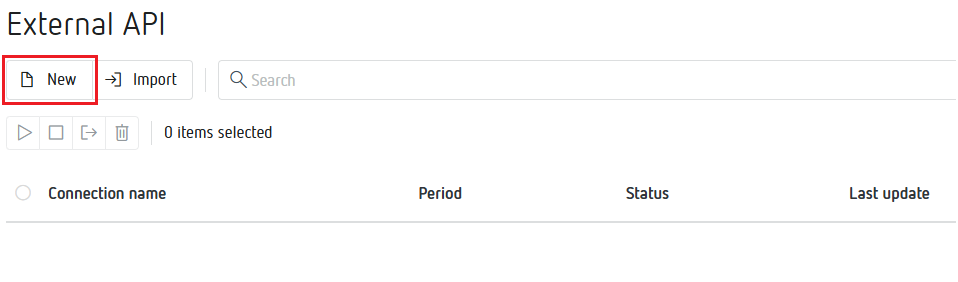
2- Fill in the 3 fields:
-
"Connection name": Enter the name you want to give to the connection.
-
"Connection URL": Enter the Weather API Query URL returned by the website, which contains the information for this API.
-
"Period": Defines the variable save interval.
Important
It is very important that the Period (minutes) matches the save interval of the forcible calculated variables.

Note
It is possible to test whether the API works by clicking the icon.
3- Click on the created API to configure it:
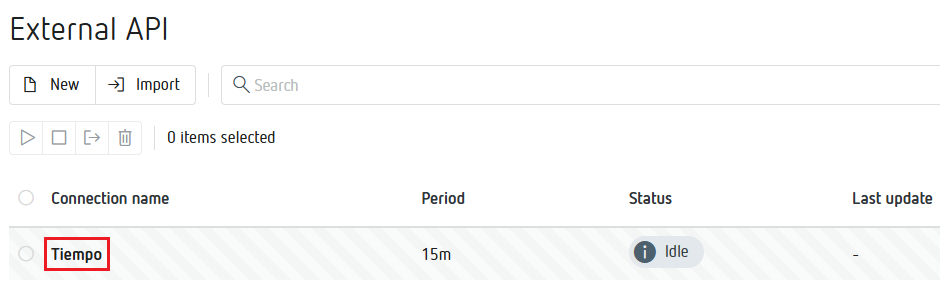
4- Once the API is created, select the required variables. Configure it as follows:
- Click "Check API":
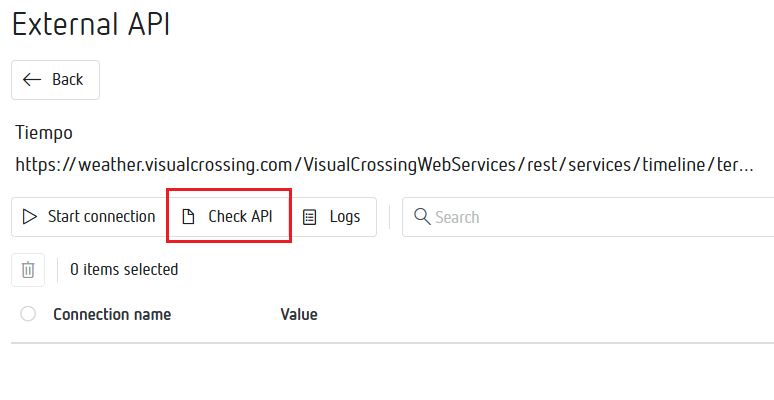
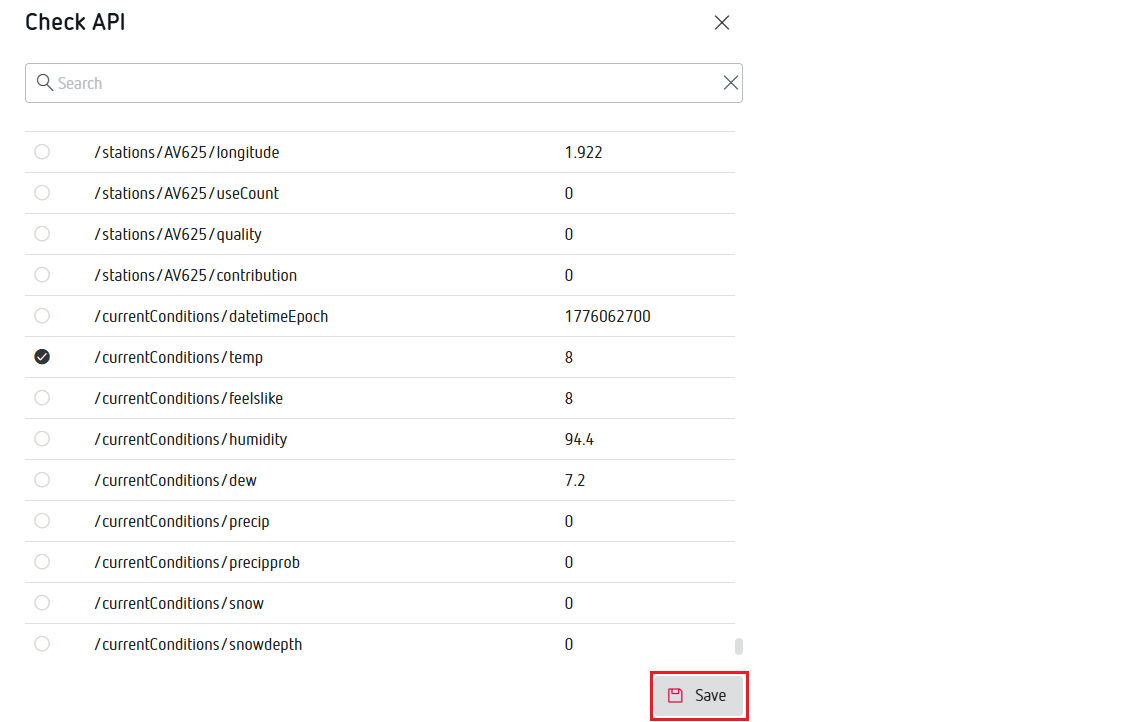
Once inside, select the variable or variables you want to use.
To select variables, click on each one individually. Once selected, click "Save":
- Click "Select":
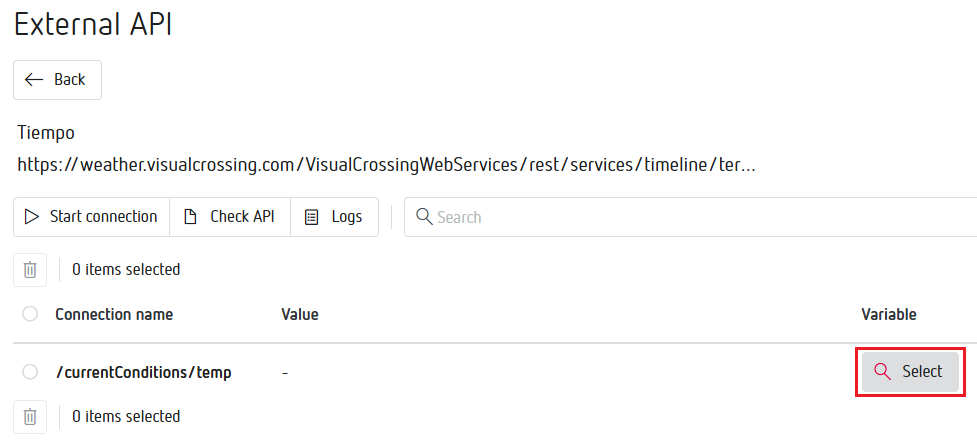
- Select the variables group and the specific variable where you want to store the value:
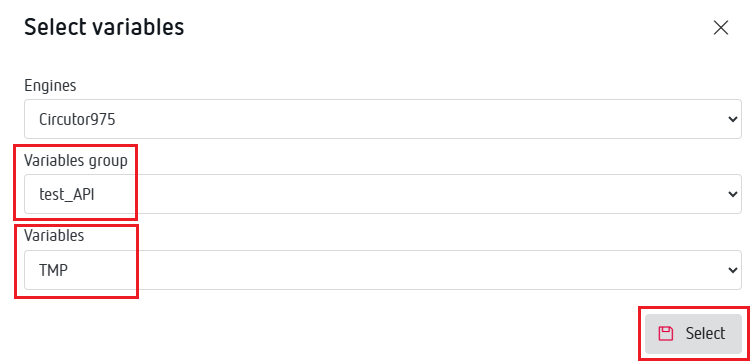
- Click "Start connection":
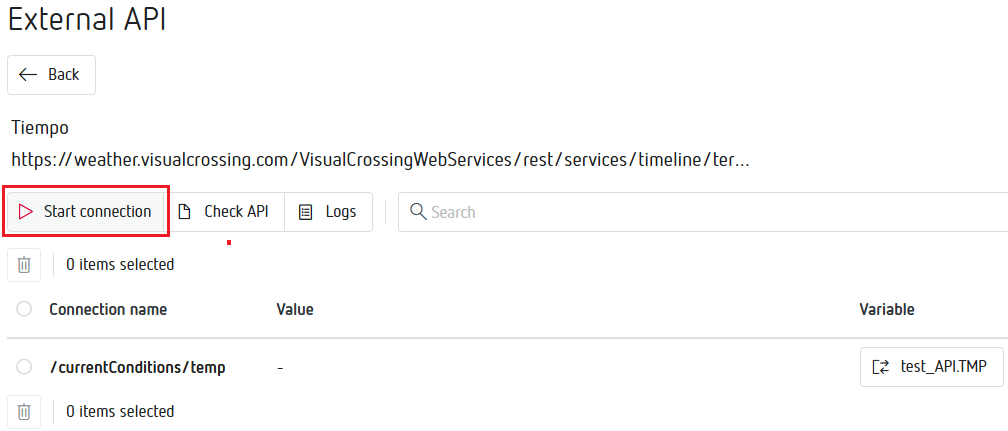
Once the connection is established, the data of the selected variables will be displayed.
Additionally, it is also possible to see the date when the connection was made.